Why Is Saving a Screenshot of a Patient Message Risky Even If I Delete It Later?
A screenshot can feel like a quick, harmless way to keep a patient message in view. You might want to remember a detail during a busy shift, hand something over, or read a message when your usual system is inconvenient. But a screenshot can turn one message into several copies, move it outside the systems your organization controls, and make it harder to know who can access it or whether it has really been removed.
Deleting the image from your camera roll is not necessarily the end of the story. It may remain in a recently deleted folder, a cloud backup, a synced device, a message attachment, or another location you did not intend. And if the screenshot was saved to a personal device, your employer may not be able to check or remove every copy.

This is a practical data-protection issue, not just a question of whether you had good intentions. Patient information is confidential, and a screenshot may contain more than you meant to capture: a name, phone number, message preview, notification, or part of another record. The safest approach is to use approved systems and follow your employer’s device policy rather than creating an unofficial copy.
Start with Your Employer’s BYOD and Device Policy
Before taking any image of a patient message, check your employer’s policy on personal devices and bring-your-own-device (BYOD) arrangements. The policy should explain whether personal phones may be used for work at all, which applications are approved, and what to do if information has already been saved to an unapproved location.
Do not assume that a device is approved simply because you use it for work email, have a work profile, or can install an organization’s app. Approval may apply to specific applications and activities, not to every feature on the phone. A work application may be managed while the camera roll, photo backup, notifications, and personal messaging apps remain outside that management.
If the policy is unclear, ask your manager, information governance team, IT service desk, or data protection officer before capturing or storing patient information. This is especially important if you are working from home or using a shared device. Avoid making up a workaround while you wait for an answer.
Why an Approved System Matters
Patient and organizational information should be handled through the systems your employer has approved for that purpose. Those systems may have access controls, retention rules, audit trails, and processes for managing information when a staff member changes role or leaves. A screenshot saved in a personal photo library may not have those protections.
The Information Commissioner’s Office (ICO) provides guidance Get more information on protecting personal information, including its working securely guidance and advice on working from home securely. These resources support the broader principle that organizations should protect personal data wherever it is used, including away from the usual workplace. Follow your organization’s instructions alongside the ICO’s guidance; do not treat general guidance as permission to use a personal app or device.
Approved systems also help keep records where colleagues with a legitimate work need can find them. A screenshot sent to a colleague may seem convenient, but it can bypass the normal record, handover, or messaging process. If the information needs to be part of the patient record, use the approved method for documenting it. If a colleague needs to know something, use the approved communication channel and share only what they need.
The Extra Copies Problem
The main risk is often not just the first screenshot. It is the extra copies problem: the same patient information may spread across places that are difficult to see or control.
Depending on the device and settings, taking a screenshot may create or trigger copies in:
- the main photo library or a screenshots album;
- a recently deleted or trash folder;
- cloud photo backup or another photo backup sync service;
- a tablet, computer, or other device linked to the same account;
- a work or personal chat if the image is shared;
- an email attachment or draft; or
- a device backup that may later be restored to another phone.
Not every phone or service behaves the same way. Some settings upload images automatically; others sync only when the device is charging or connected to Wi-Fi. A backup may be encrypted, but encryption alone does not mean the location is approved for patient information. Check your employer’s policy and the actual device and account settings rather than assuming how they work.
Deletion may remove one visible copy while leaving another. For example, deleting an image from the gallery may move it to a recently deleted folder, and a cloud service may have its own deletion or retention process. A copy already sent to someone else may remain on their device. That is why “I deleted it later” does not reliably answer where the information went or who could see it.
Photo Backup Sync Can Make a Local Screenshot a Cloud Issue
Photo backup sync is easy to overlook because it is often enabled during phone setup or attached to a personal account. A screenshot saved locally might upload to a cloud account without a separate decision at the moment you take it. If that account is also connected to another device, the image could appear there too.
Turning off a backup feature after the fact may not remove images already uploaded. Likewise, deleting an image from one device may or may not delete it from every synced location, depending on the service and its settings. Do not test this with patient data. If you think an image has been uploaded or synced, follow your organization’s incident-reporting process and ask the appropriate team for instructions.
Folders do not make information secure by themselves. Moving a screenshot into a folder called “Work” or “Private” does not necessarily change who can access the account, whether it is backed up, or whether the device is managed. Security depends on the approved system, access controls, configuration, and handling—not the folder name.
Separate Entertainment from Clinical Work
A phone used for personal entertainment may also hold social media apps, games, messaging accounts, family photos, and saved passwords. Mixing clinical work into that environment can make it harder to maintain clear boundaries and harder to understand which apps, accounts, and backups may receive information.
Follow your employer’s rules about using a personal device for clinical work. If your organization permits limited work use, use only the approved applications and keep work information within them. Do not copy patient messages into a personal notes app, personal email, social media chat, or a general-purpose photo library because it is quicker. Do not forward a screenshot to yourself as a reminder.
Keeping work and personal activity separate is not a guarantee of security, but it reduces avoidable routes for disclosure. For example, it can help prevent a personal app from accessing a camera roll that contains work images. Use the controls your organization provides, such as a managed work profile or approved device, and ask IT what those controls do and do not protect.
Lock Screen Previews and Notification Privacy
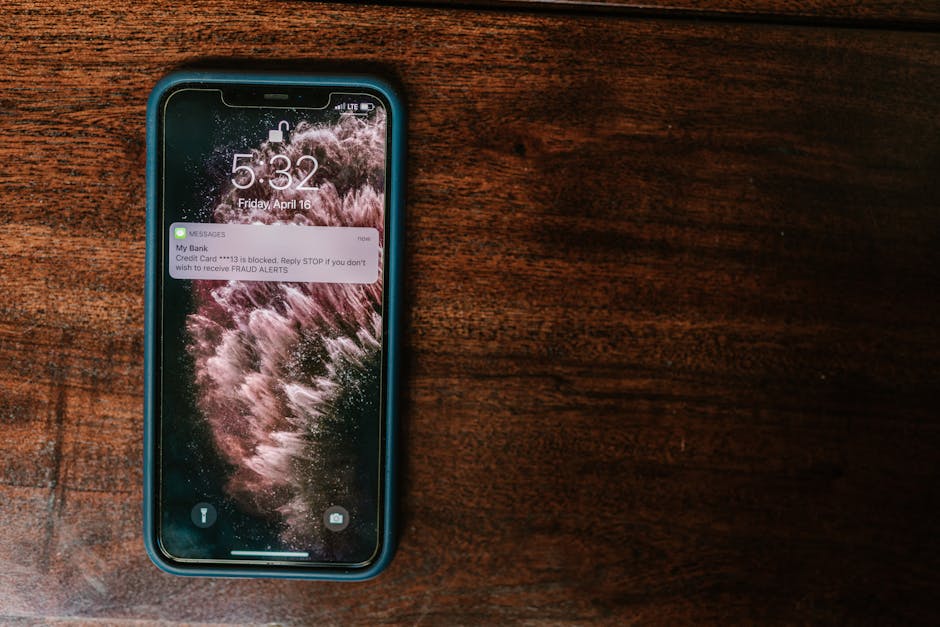
A screenshot is not the only way a patient message can appear outside the clinical system. Lock-screen previews and notifications may display a patient’s name or part of a message while the phone is on a desk, in a pocket, or visible to someone nearby. A screenshot may capture that notification as well as the message you meant to save.
Review notification settings on the actual lock screen before relying on them. I recommend checking the phone while it is locked, because a setting that looks private in a menu may still show a sender, subject, or message preview in practice. Where your employer permits work notifications on a device, configure them so sensitive content is not displayed on the lock screen. The exact setting varies by phone and app; look for options such as hiding sensitive content or showing notifications without previews.
Also consider who can see the screen when the device is unlocked. A strong passcode and short auto-lock interval can reduce exposure if the device is left unattended, but they do not make an unapproved storage location appropriate. Follow your organization’s device-security requirements, and do not rely on a lock screen to protect information that has been copied elsewhere.
Audit and Removal: What to Do If You Already Took a Screenshot
If you have already saved a screenshot, do not panic or quietly delete it and assume the issue is resolved. Take a clear, prompt approach that follows your organization’s policy. The right response may depend on the information captured, the device, whether the image was shared, and whether it was backed up.
- Stop sharing or copying it. Do not forward the image, upload it to another service, or create more copies while trying to tidy up.
- Report it through the approved route. Contact your manager, information governance or data protection team, or IT service desk as your policy directs. If your organization has a data incident process, use it promptly.
- Explain where it may have gone. Be factual: identify the device and app, whether it was sent to anyone, and whether photo backup sync or another account may be enabled. If you do not know, say so.
- Follow instructions for audit and removal. The organization may need to establish what information was captured, who could access it, and which copies need to be removed. Do not delete relevant evidence before asking what to do.
- Confirm the outcome through the responsible team. Ask whether any further action is needed, including removal from a recently deleted folder, synced device, or backup service. Do not claim that all copies are gone unless that has been verified through the proper process.
Audit and removal are not always as simple as checking the camera roll. An organization may need to understand whether information was accessed or disclosed, and follow its own incident and record-keeping procedures. Your role is to report accurately and cooperate, not to conduct an informal investigation or conceal the event.
A Safer Routine for Patient Messages
Situation Safer action You need to refer to a message later Use the approved clinical or organizational system and follow the relevant documentation process. A colleague needs the information Share it through the approved work channel, with only the details needed for the task. You are unsure whether your phone is approved Check the employer’s BYOD and device policy or ask the appropriate support team before using it. Work notifications appear on the lock screen Review the notification controls on the locked device and follow your employer’s privacy requirements. You have already captured or shared an image Stop further sharing and report it promptly using your organization’s incident process.The Bottom Line
Deleting a screenshot later may remove the copy you can see, but it does not prove that every copy has gone. The image may have synced, been backed up, appeared on another device, or been shared outside the approved Check out here system. That is the extra copies problem—and it is why a screenshot can create risk even when the original reason was practical and well-intended.
Start with your employer’s BYOD and device policy. Keep patient and organizational data in approved systems, separate clinical work from personal entertainment, and check lock-screen notification privacy on the actual device. If a screenshot has already been created, use your organization’s reporting, audit, and removal process rather than relying on a quick delete. For further context, consult the ICO’s guidance on working securely and working from home securely, alongside your local policies.